
From the table to the kitchen in seconds
Waiters take orders on their phones, the kitchen sees them at once on a screen or printer, and the cashier takes payment on the tablet — all on the shop’s Wi‑Fi, with or without internet.
Free for 14 days · no payment · your shop is ready in minutes
- Tables and floors
- Kitchen tickets by station
- Waiter phones
- Kitchen screen
- Guest QR ordering
- Split bills
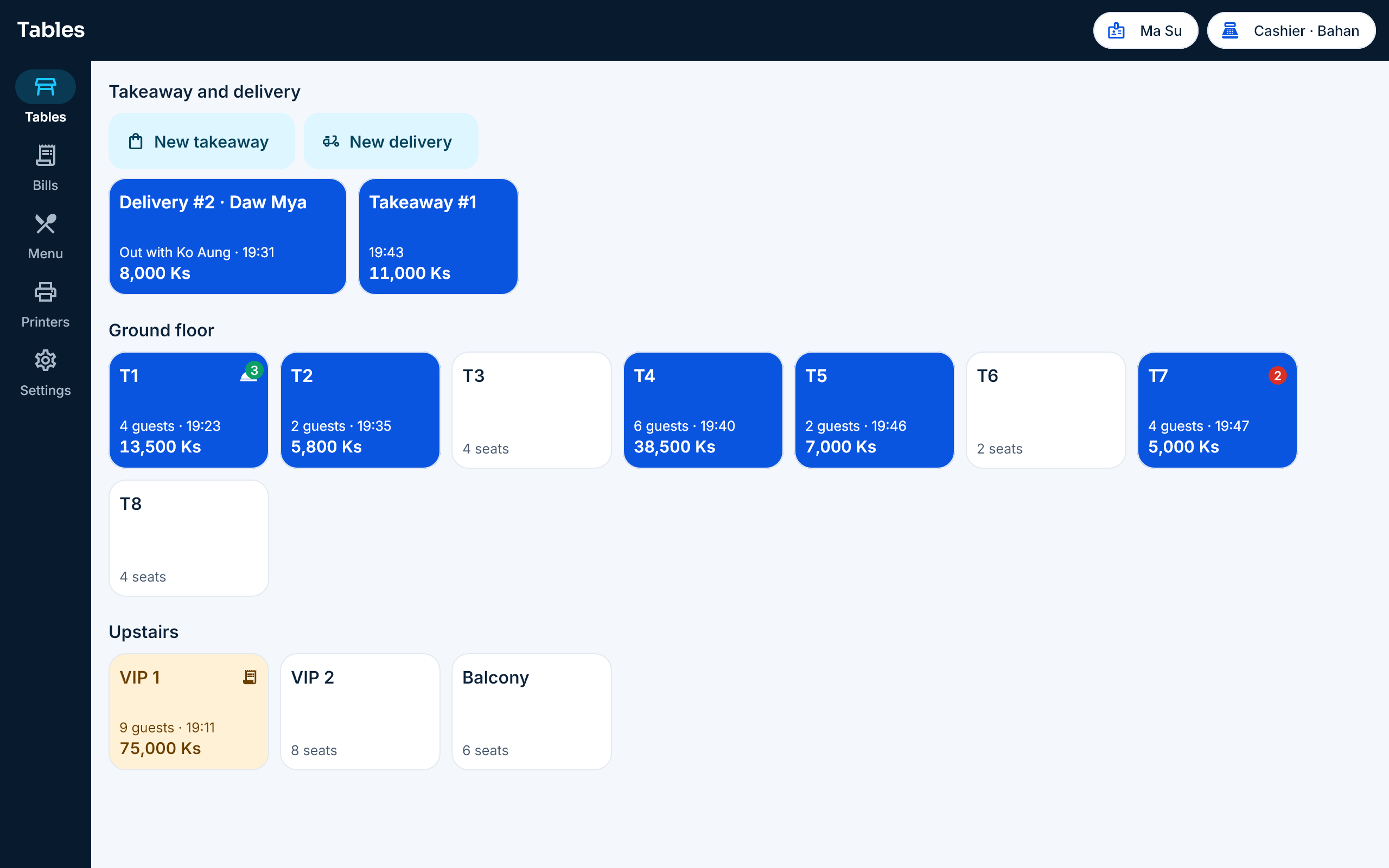
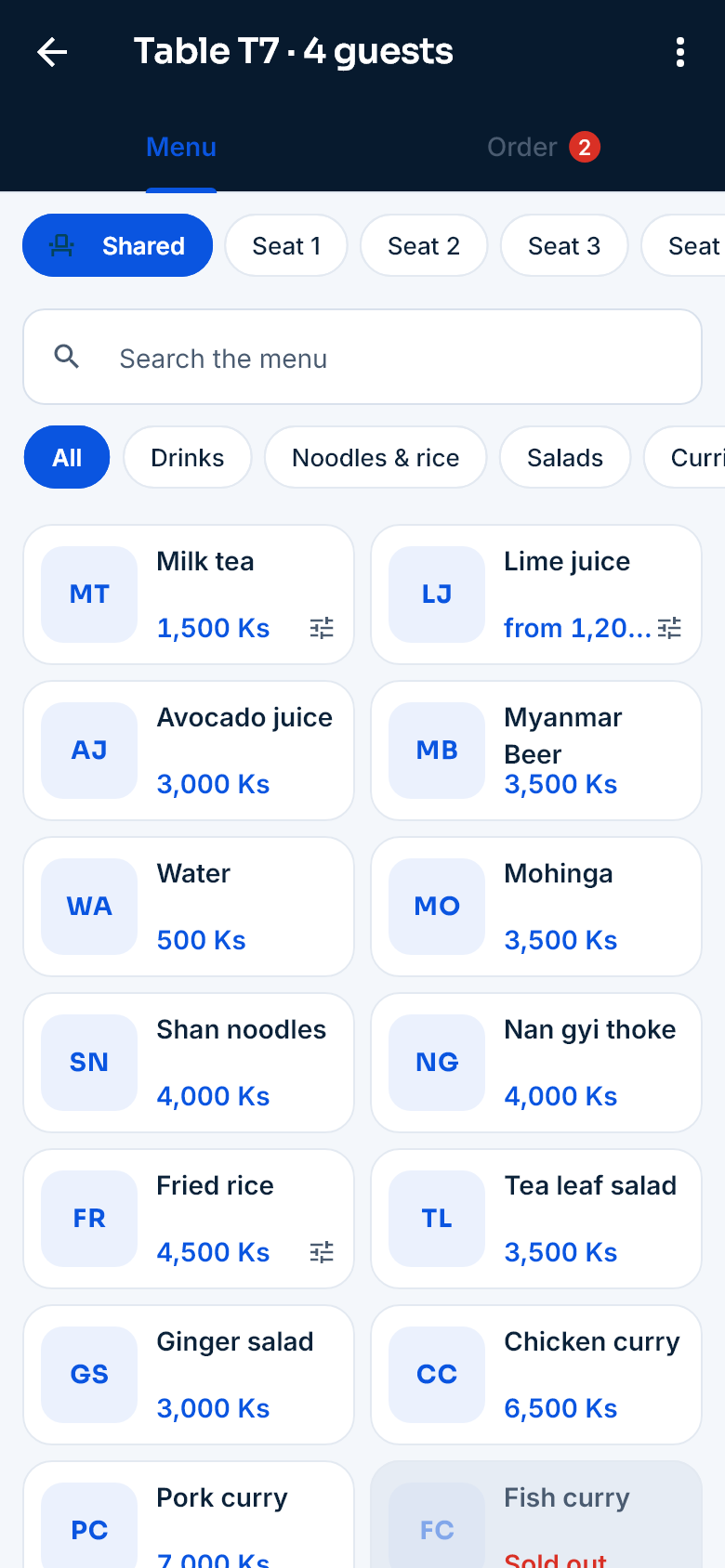
Every device in the restaurant, one system
The cashier tablet is the restaurant’s hub; the other devices connect to it over the shop’s Wi‑Fi.
When the internet is down, everything keeps working on the shop’s Wi‑Fi, and bills go to the server later.
Run the restaurant from the web
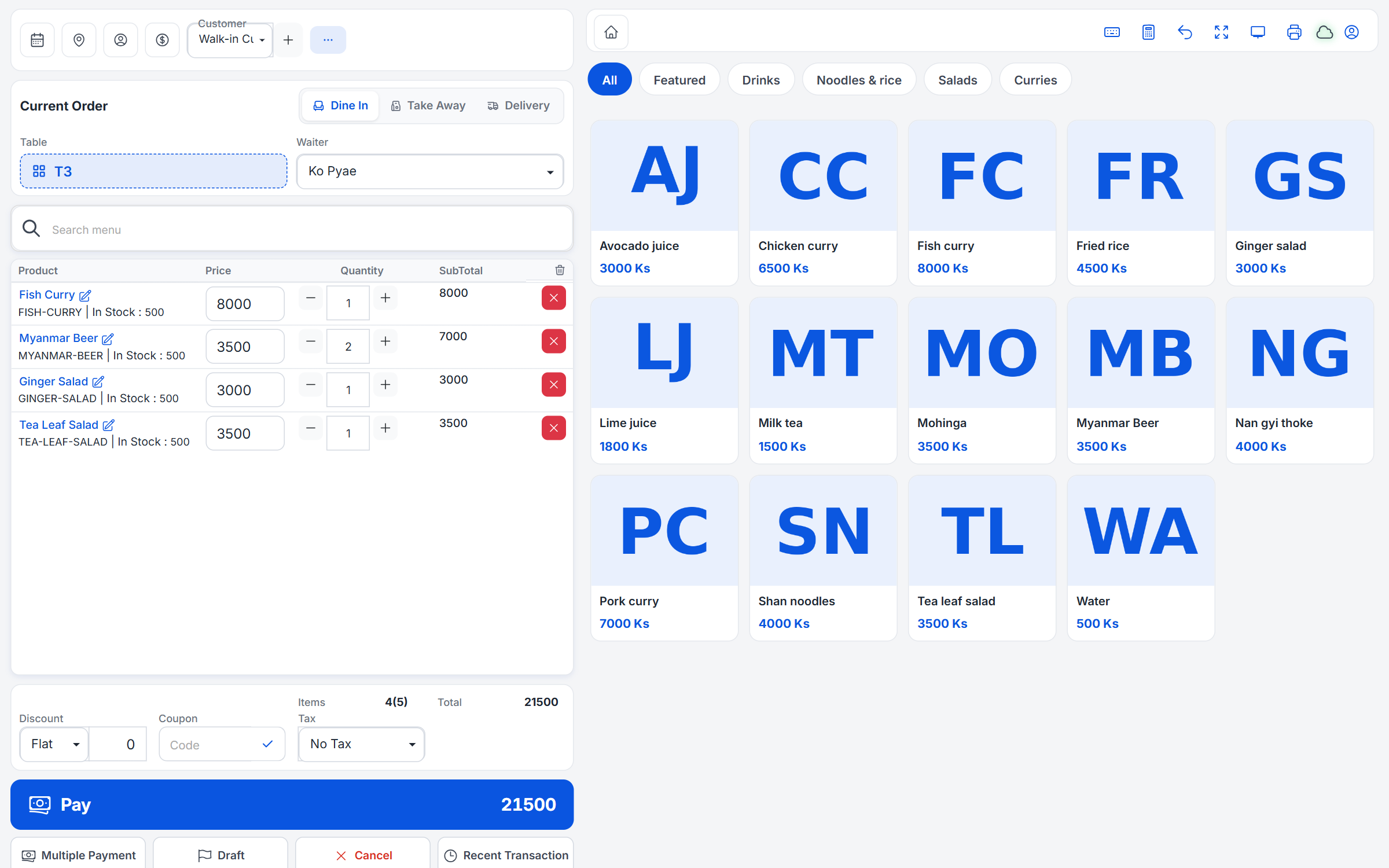
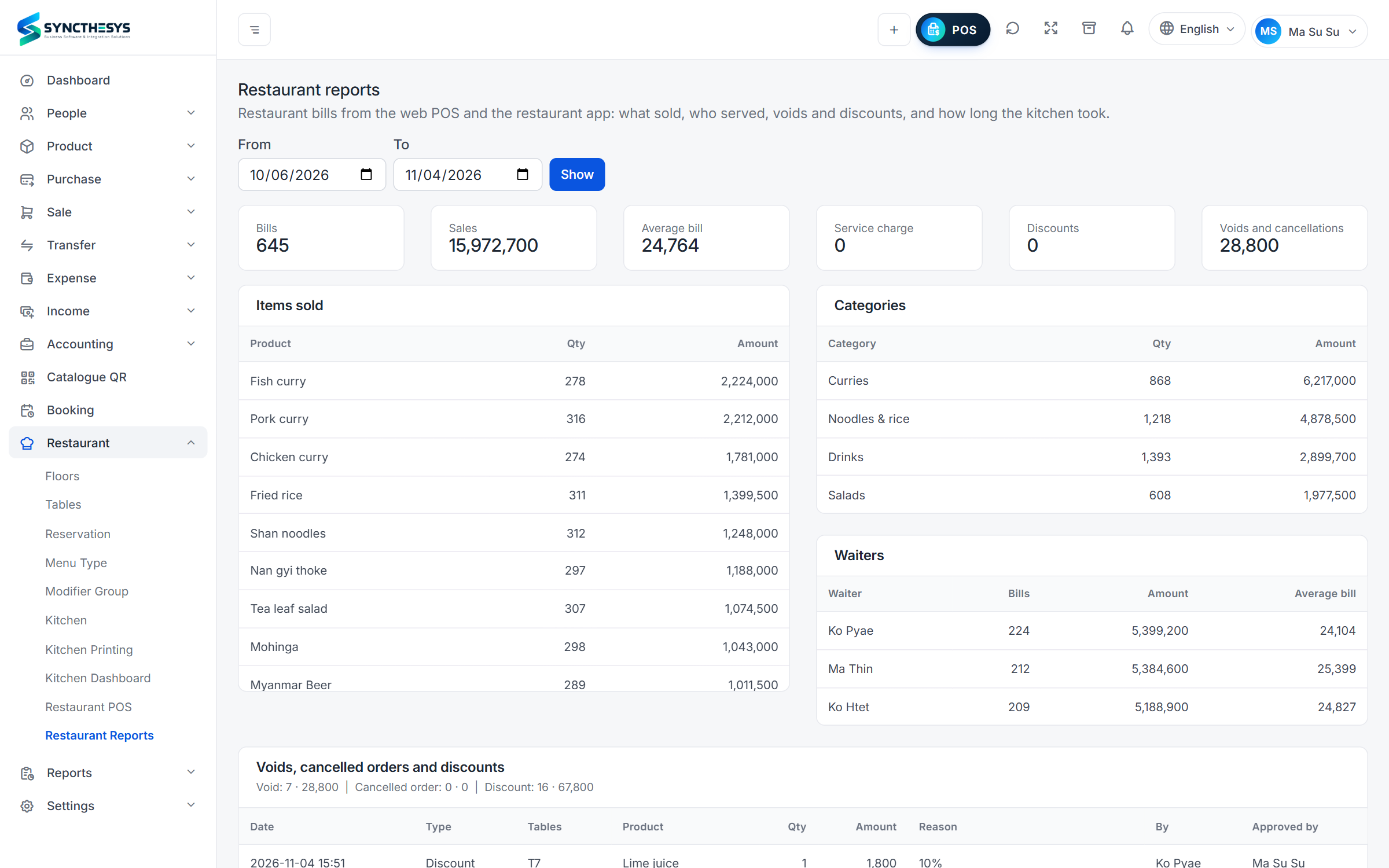
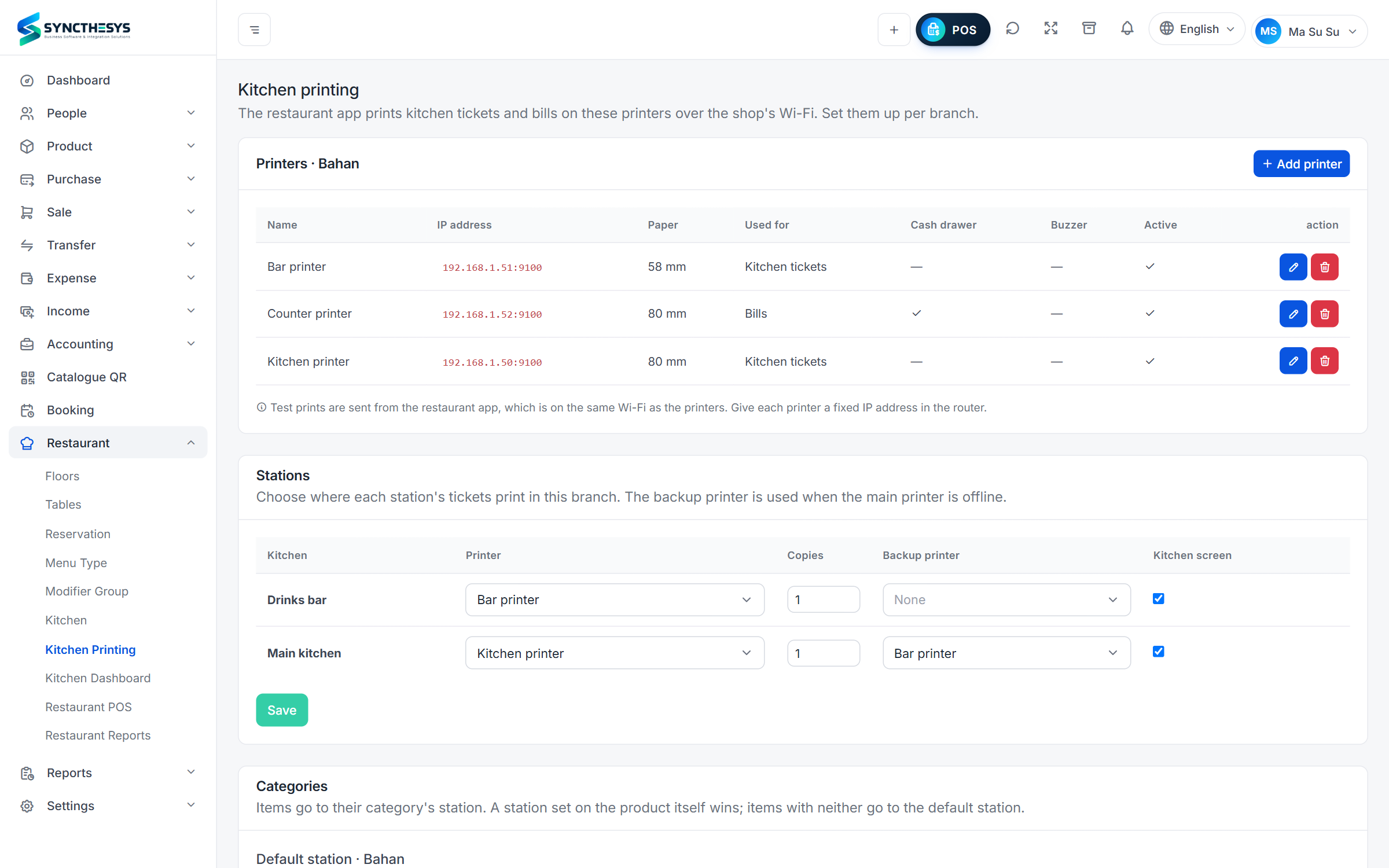
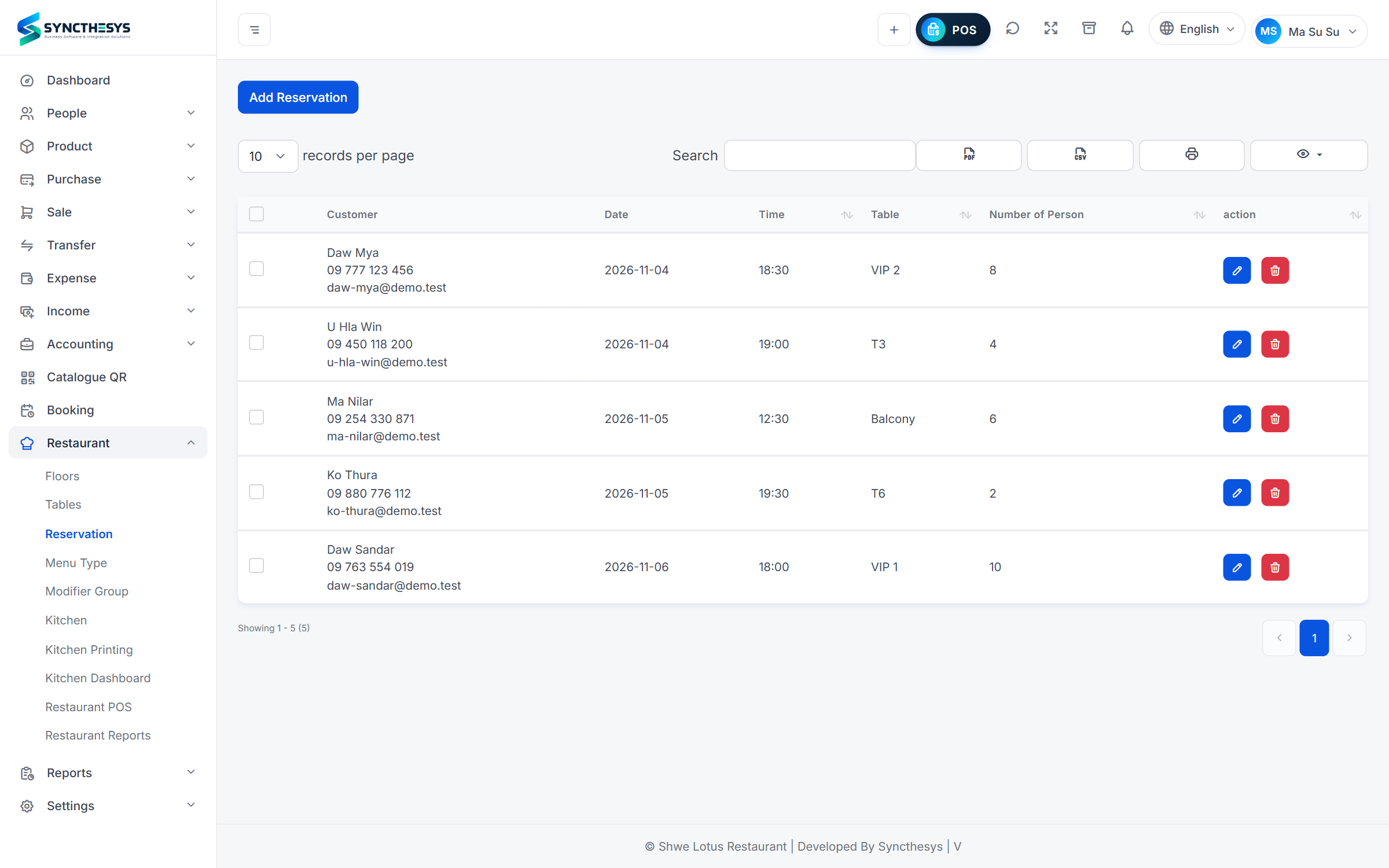
Take orders at the counter in a browser, follow the kitchen, and manage tables, printers, bookings and reports from any computer. These are real screens, shown with a sample restaurant.
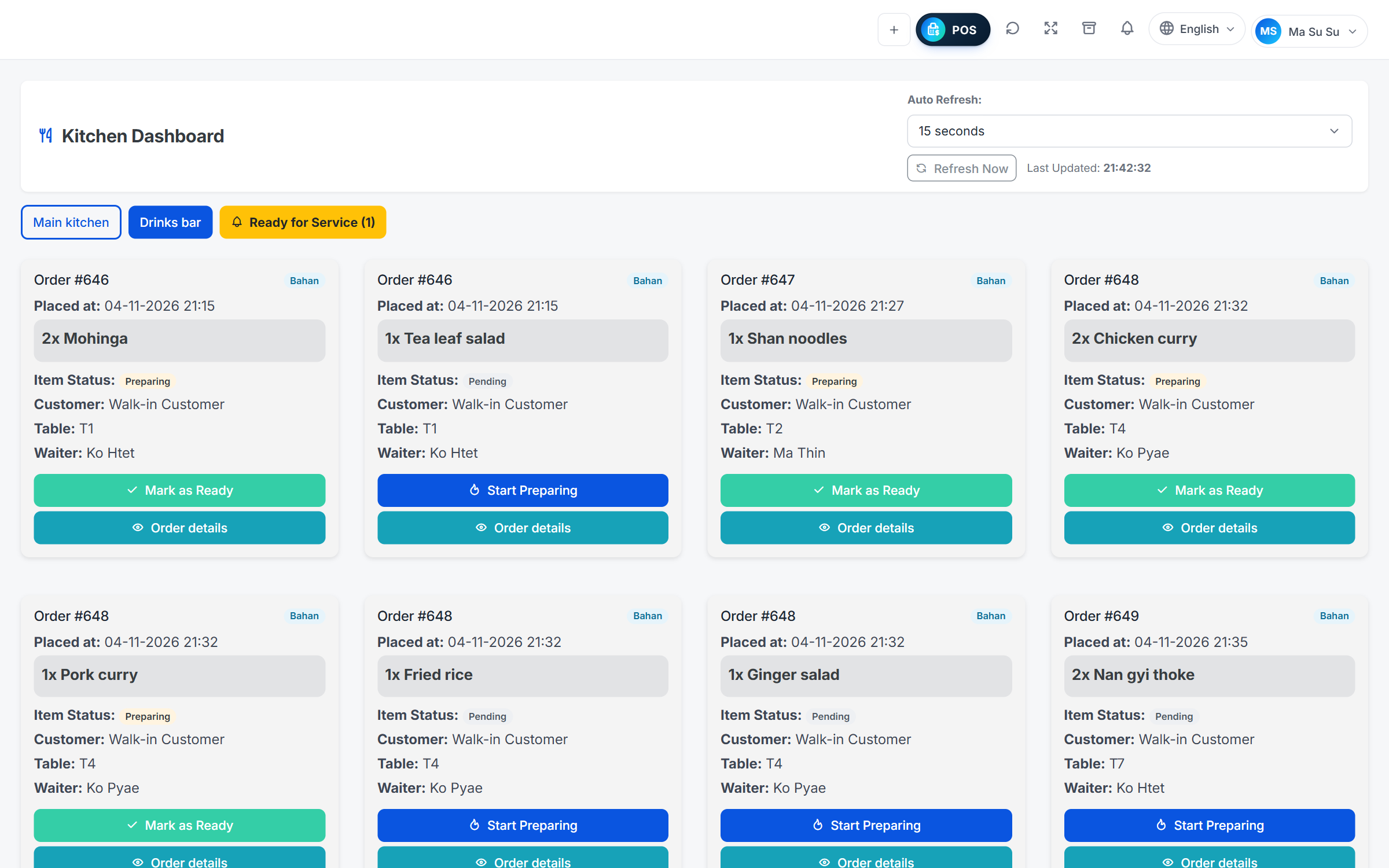
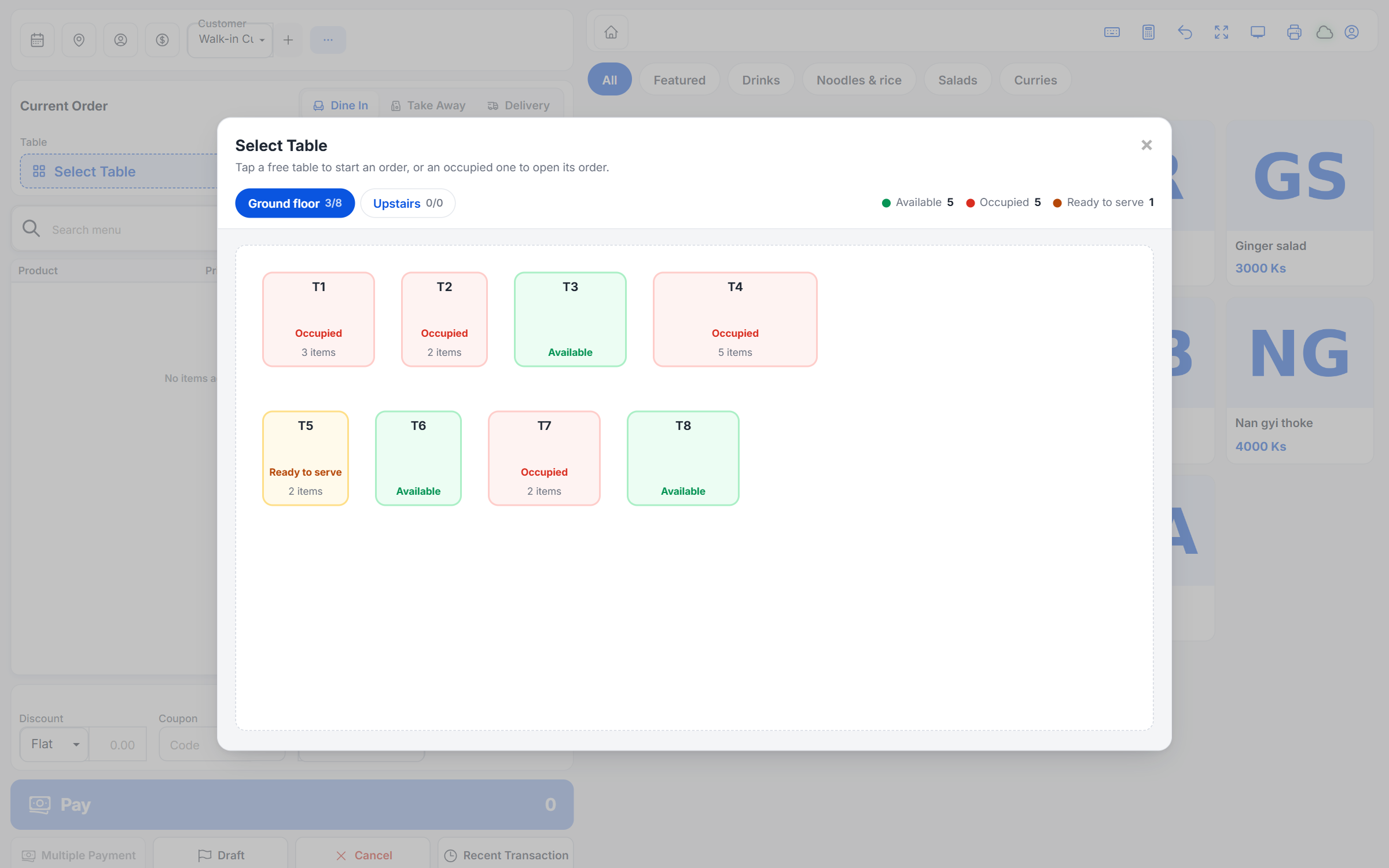
The whole restaurant at a glance
Tables by floor, with guests, time seated and the amount. Food that is ready, items not yet sent and tables that asked for the bill are marked.
- Move and merge tables
- Numbered takeaway orders
- Bookings for today and tomorrow
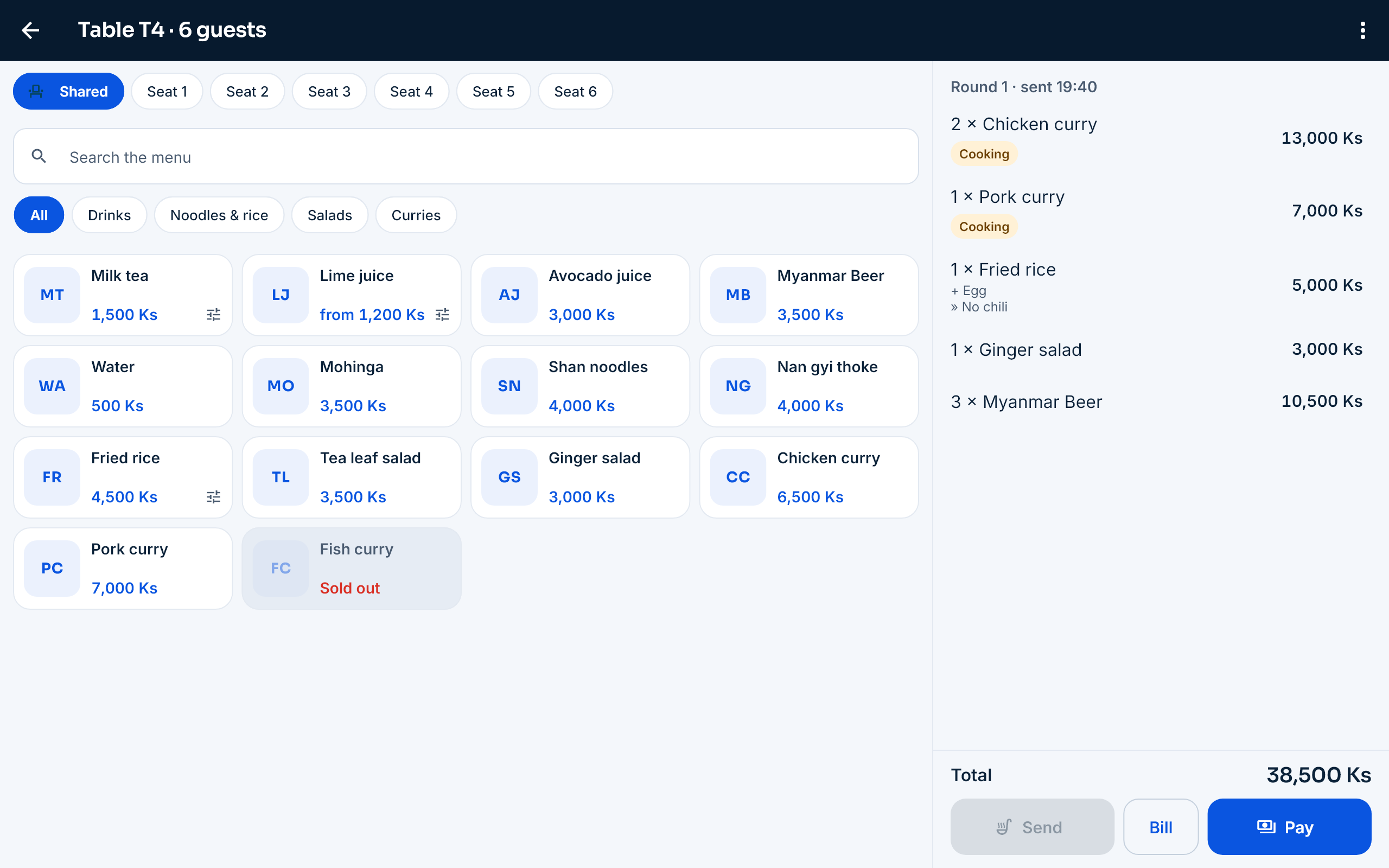
Fast orders, fewer mistakes
A menu by category, sizes and extras, and notes such as “no chili”. Sold-out dishes can’t be ordered.
- Send to the kitchen round by round
- Hold some dishes and send them later
- Voids and discounts approved with a manager’s PIN
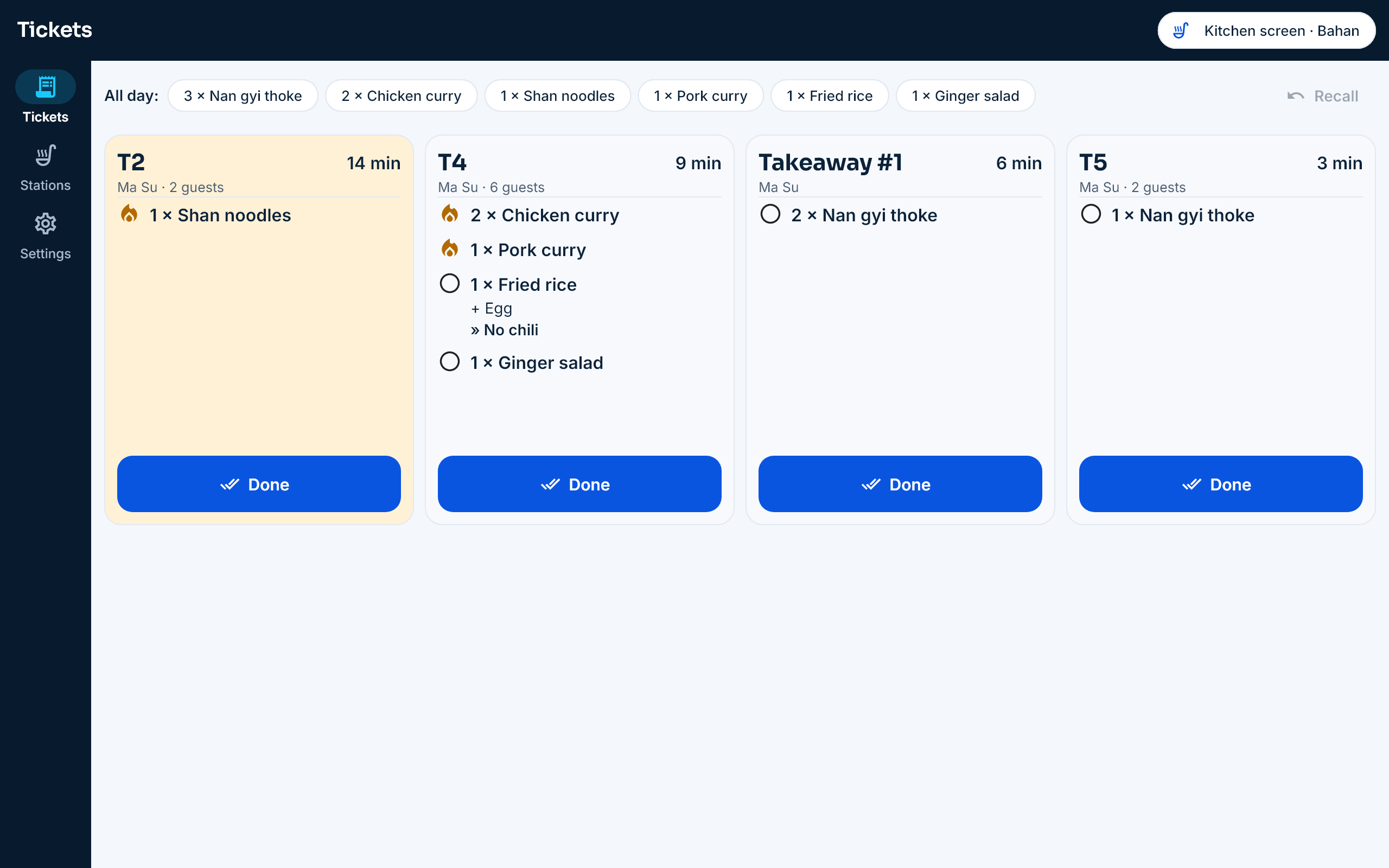
Kitchen screen and tickets
Each station’s tickets with the minutes waiting. Slow tickets change colour, and the day’s totals to cook are shown on top.
- Each menu category to the right printer
- A backup printer when one can’t be reached
- An expo screen for food ready to go out
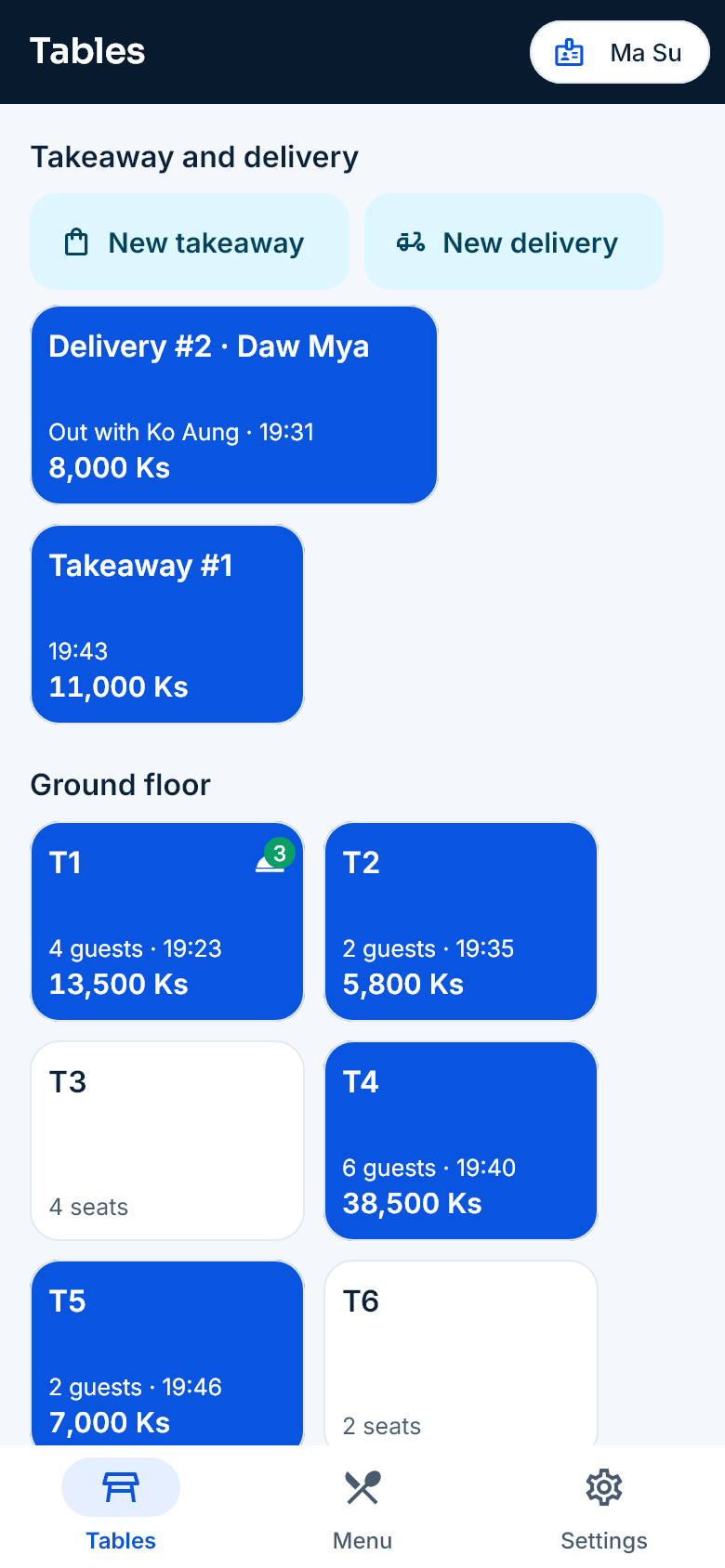
A phone for every waiter
Each waiter signs in with their own PIN and takes orders right at the table. The phone tells them when food is ready or a guest calls.
- Use the Android phones you already have
- Connect to the tablet by scanning a QR code
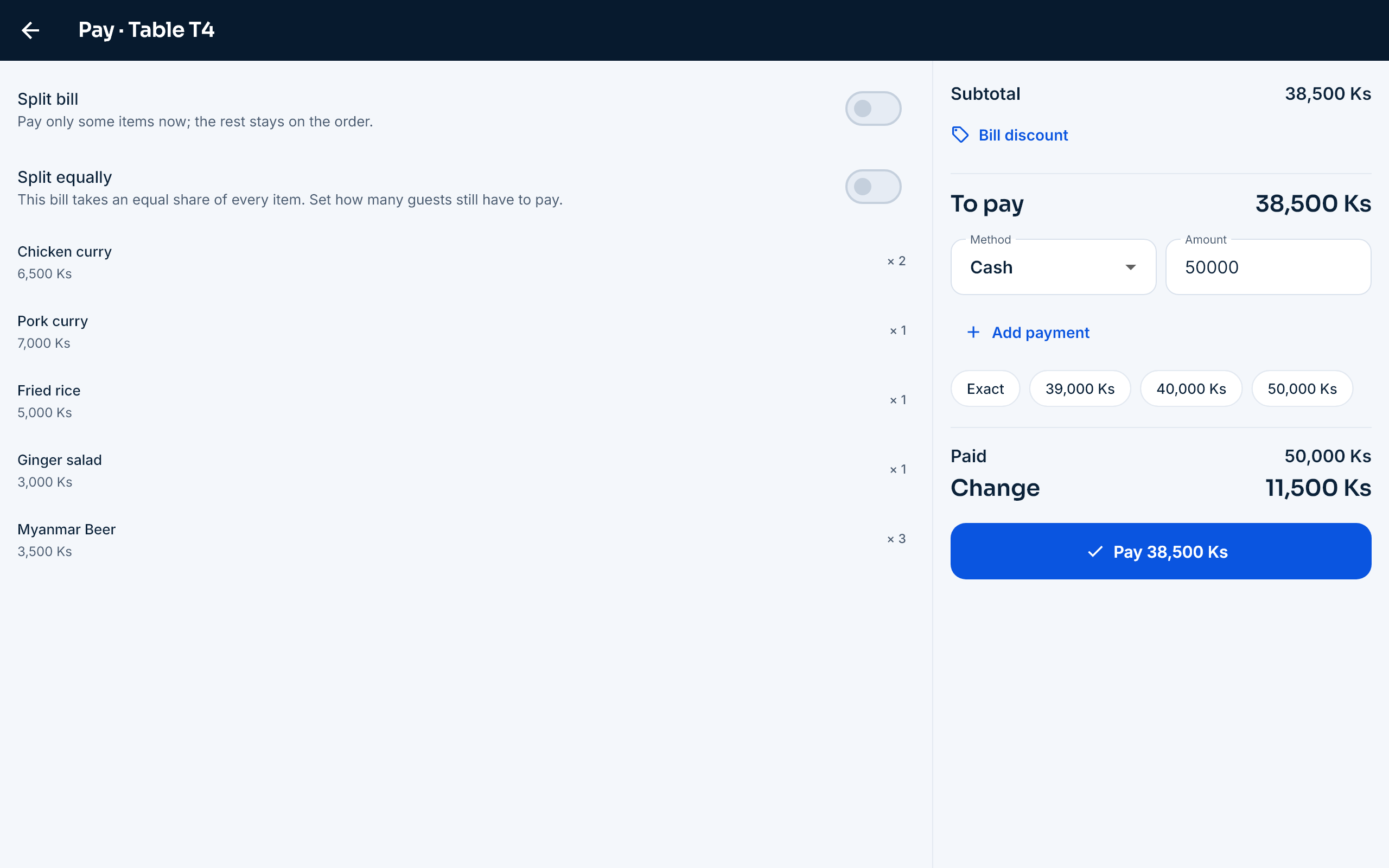
Simple payment
Combine methods such as cash, card and KBZPay, and split the bill. Service charge, discounts and change are worked out, and the receipt prints.
- The cash drawer opens for cash payments
- Paid bills reach the web dashboard
Ready for a growing restaurant
Guest QR ordering
Guests scan the QR code on the table to order, call a waiter or ask for the bill. Orders reach the kitchen once staff confirm them.
Bookings
Phone bookings show on the table, and one tap seats the guests when they arrive.
Staff PINs and approvals
Every staff member has a PIN, and voids and discounts need the PIN of someone allowed to approve them.
Keeps going if the tablet breaks
If the hub tablet breaks, another tablet takes over with the open orders.
မြန်မာ · English · 中文
Each device can use its own language, and kitchen tickets print it correctly.
Managed on the web
Edit the menu, prices, tables, printers and staff on the web dashboard, and see the sales reports.
Restaurant plans
Priced in kyat, with a free trial. Move up a plan as your business grows.
Frequently asked questions
What happens when the internet goes down?
The cashier tablet, waiter phones and kitchen screens are connected over the shop’s Wi‑Fi, so they keep working as usual. Bills go to the server when the internet is back.
Which devices do I need?
An Android tablet for the cashier and a Wi‑Fi router. Add waiter phones, kitchen screens and network printers as you need them.
Can the kitchen and the bar have their own printers?
Yes. Each menu category belongs to a station (kitchen, bar and so on), and each station’s tickets go to its printer or screen. If a printer can’t be reached, its backup printer is used.
Where do I edit the menu?
On the web dashboard: menu, prices, tables and printers. Changes reach the devices automatically.
Try it in your restaurant
Create your shop yourself in a few minutes and use it free for 14 days — no payment. Want a demo? Contact us.